
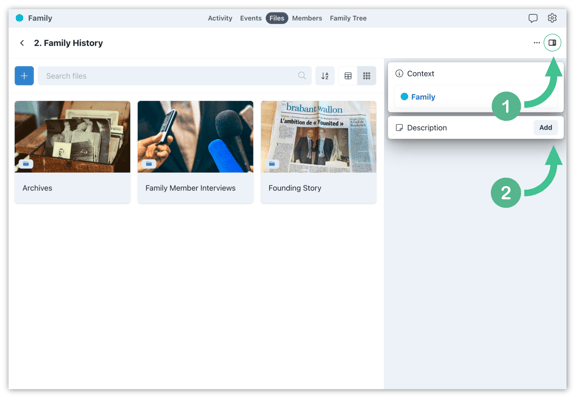
1. From the Files module of a space, open the file or folder you want to describe. If the side panel isn't already open, click the side panel icon in the upper right hand corner to open it.
2. Under Description, click Add to open the text field.
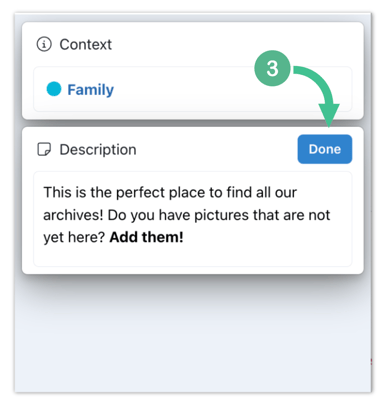
3. Type your description and hit Done to save. To update it later, hit Edit on the Description card.
Note: Descriptions are available for both files and folders — the same flow works for a PDF, a spreadsheet, an image, or any folder. Every member with access to the file or folder can see the description in the side panel.
Pro tip: Use folder descriptions to explain what belongs where — e.g. "This is where you will find all information relative to the family constitution." — and file descriptions to summarise the purpose or how to use the file — e.g. "Platform protocols are essential. Reach out if you have any questions."