
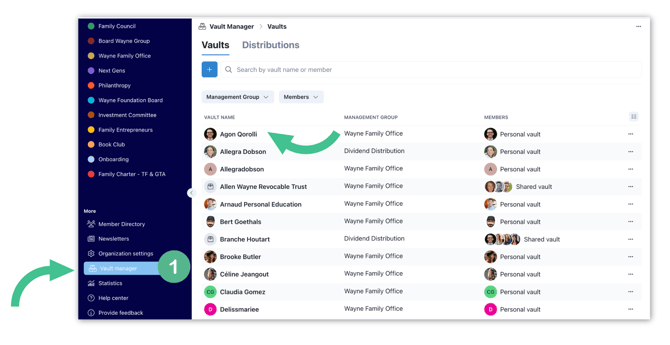
1. Navigate to Vault manager in the lower left hand corner of your screen. Under the Vaults tab, select the vault where you want to create a folder.
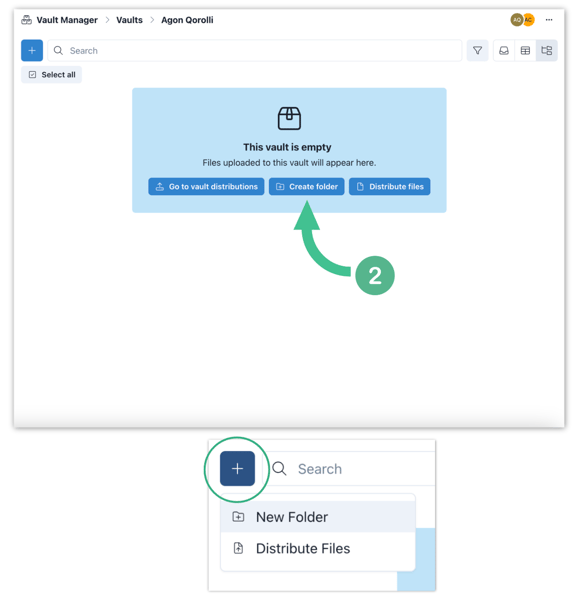
2. Click Create folder in the center of the empty vault screen, or click the + button in the upper left hand corner if your vault already contains files. You can also create sub-folders by entering the folder you created.
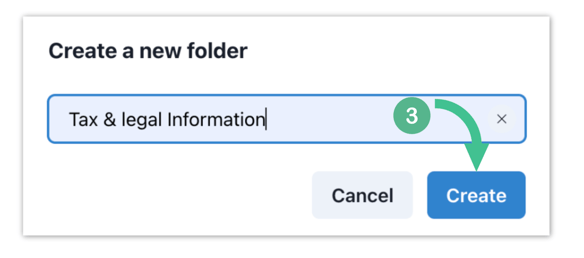
3. In the pop up, enter your folder name in the Write a folder name field, then select Create.
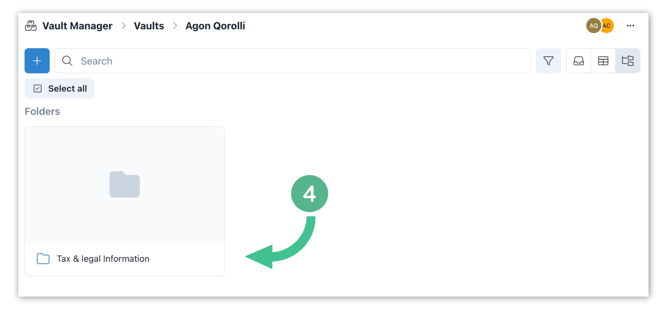
4. Your new folder will appear under the Folders section at the top of the vault, ready to receive files.
Tip: You can use the + button in the upper left hand corner at any time to create additional folders in the same vault and you can even create new folders during the vault distribution process across one, or multiple, vaults