
The goal of this integration is to enable one-directional synchronization of selected files and folders from SharePoint to Trusted Family, eliminating the need for manual downloads and re-uploads.
Content continues to be managed in SharePoint, while updates to synced files and folders are mirrored on the Trusted Family platform in near real time.
Additionally, users can view files synced from SharePoint directly within Trusted Family, without requiring a SharePoint account.
Important: Permission Inheritance Limitations
This integration does not support SharePoint folders with broken permission inheritance. If your synced drives contain folders with unique permissions, users may see data they should not have access to. To learn more click here.
Step 1: Setting up as a SharePoint Admin
Step 2: Connecting your SharePoint account (users)
1. Go to My Settings after clicking on your name at the bottom left hand side of your screen. Click on Connected Apps and select SharePoint and connect your account, this is required before you can select files and folders to sync within Spaces and Events.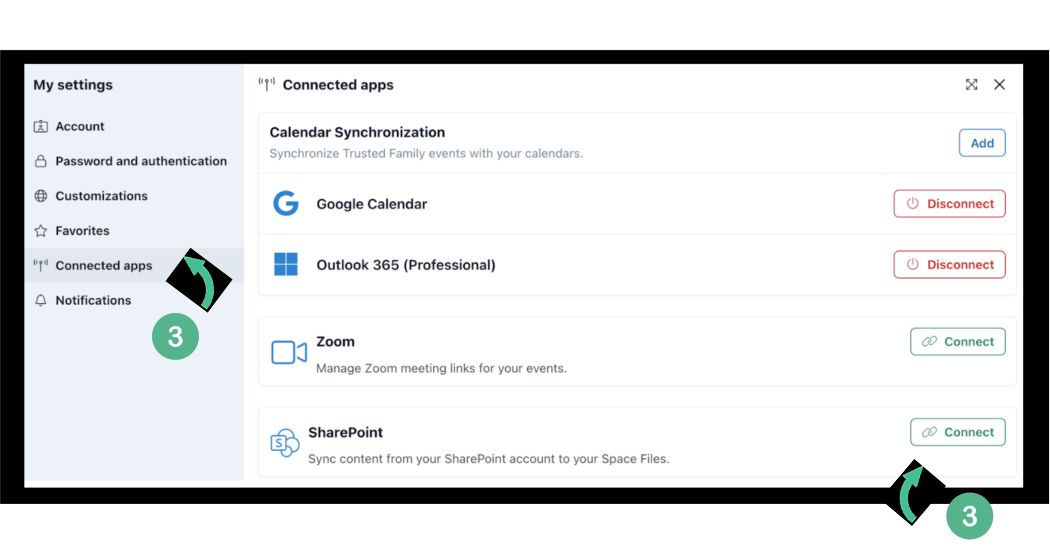
Note: If you don't see this option in your Connected Apps, it probably means your Sharepoint Administrator still needs to establish the connection. Please check out Step 1.
Step 4: Synchronizing SharePoint Files and Folders in Spaces
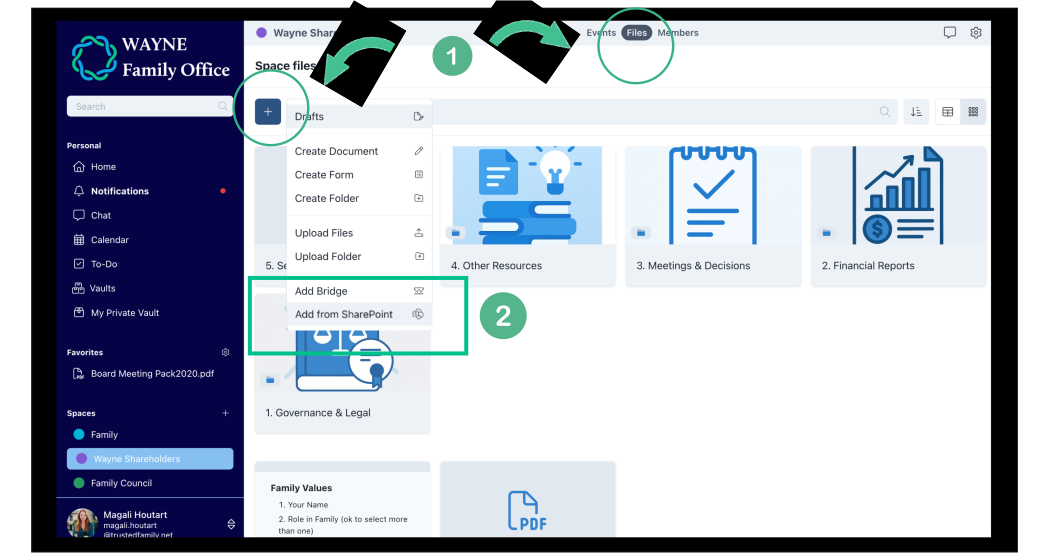
1. Navigate to the specific Space or Event where you want to link your Sharepoint folder.
Go to the files section (if Space) or the events pack (if Event) and click on the "+" sign.
2. Choose Add from SharePoint.
3. You can now see the SharePoint sites and drives that were permitted by your Shareholder Administrator. Use the arrows to expand/collapse the different drives. Select the relevant ones and click Next.
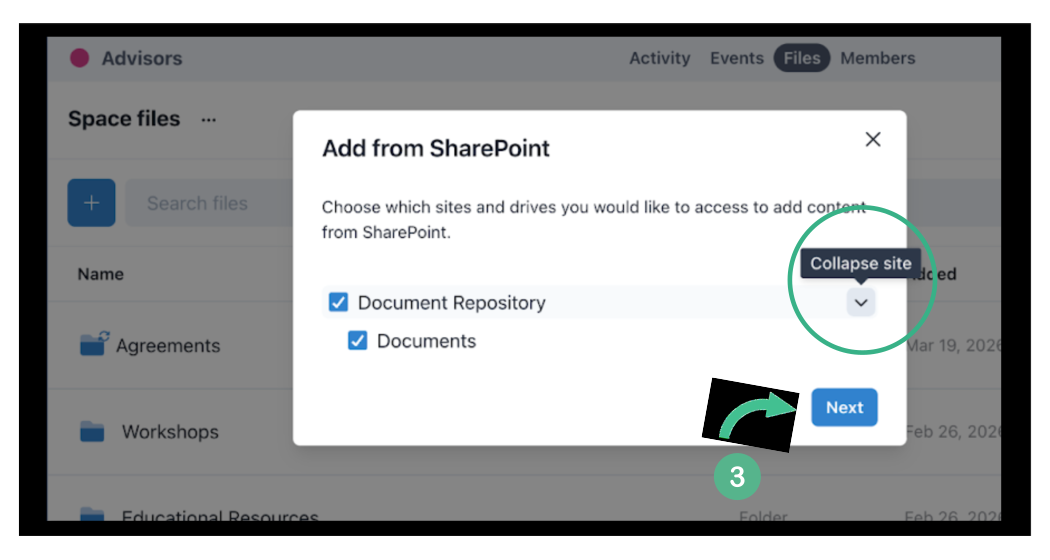
Note: The amount of sites and drives you can see depends on your SharePoint permissions.
4. Select the folder(s) and/or file(s) you would like to share and click on Preview.
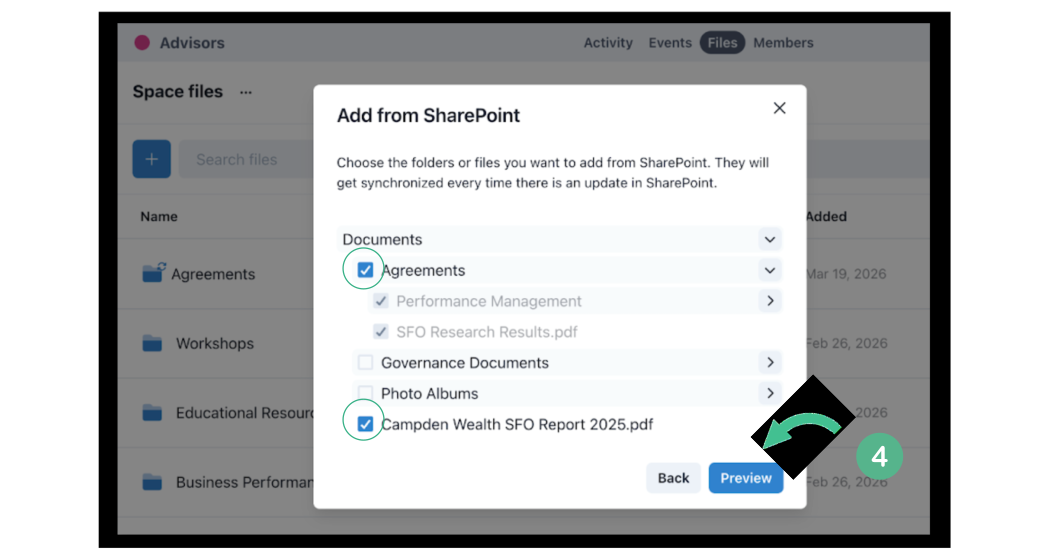
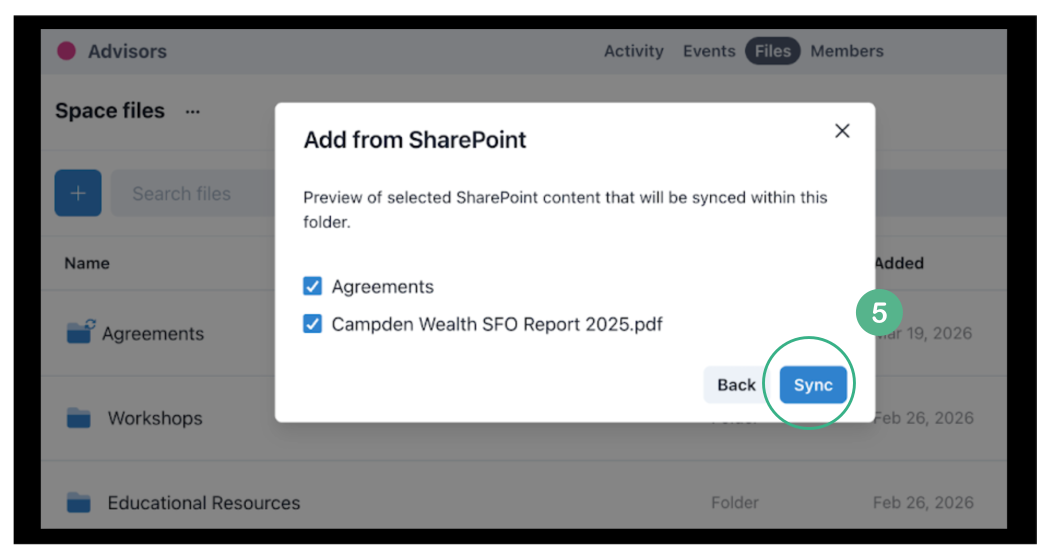
5. Once reviewed, please click on Sync.
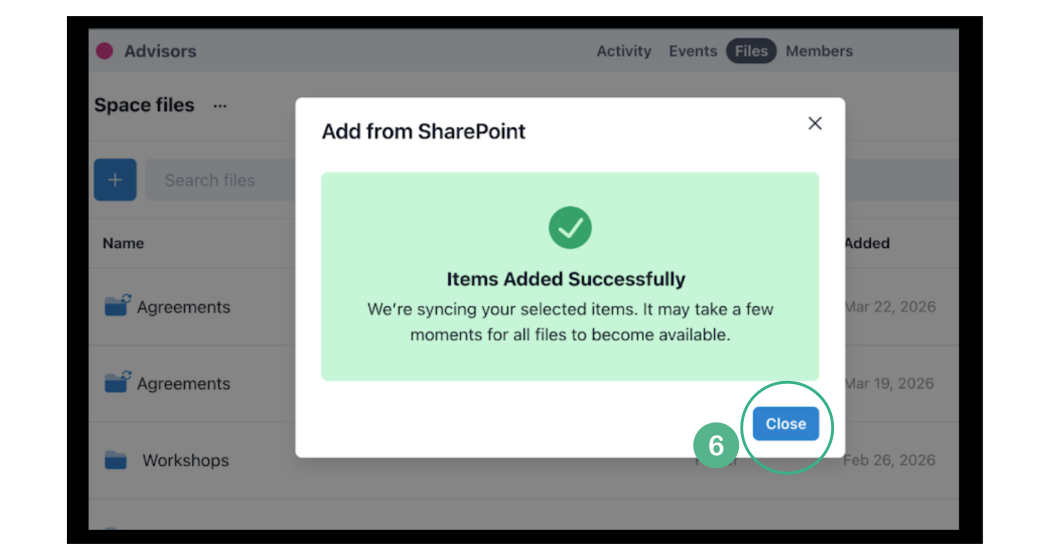
6. You will get a confirmation that the files and folders are added successfully.
Note: After adding the files and folders, you will be able to:
- Read the files (as any other member in the Space)
- Delete files (will delete only on Trusted Family, not SharePoint) that were synced from SharePoint individually
- Delete highest-level folders (will delete only on Trusted Family, not SharePoint)
- Share the files across different spaces
- Create announcements using the files