
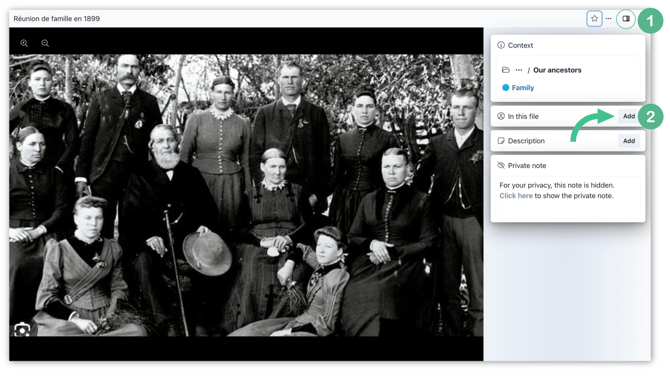
- Open the picture you want to tag members in. If the side panel isn't already open, click the side panel icon in the upper right hand corner to open it.
- Under In this file, click Add to open the search dropdown.
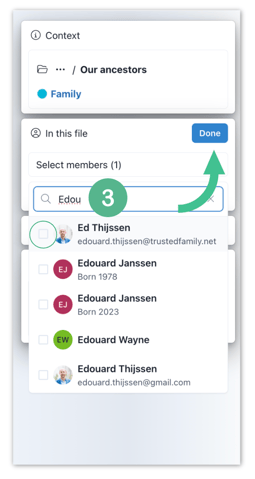
- Type a member's name in the search bar and check the box next to them to tag them. Repeat for every person in the picture. Hit Done to save. The tagged members now appear under In this file.
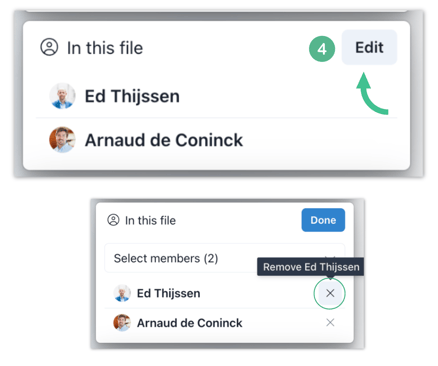
- You can hit Edit and delete a member to update the tags at any time. Once it is done, simply select Done.
Note: This same flow works for any file in the Files module — documents, PDFs, spreadsheets, videos, and more. Open the file, use the In this file section in the side panel, and select the members to tag.
Pro tip: Tagged members can find every file they appear in directly from their own profile — great for building a personal family history. Follow this article on See Where a Member has been Tagged to learn more.