
The goal of this integration is to enable one-directional synchronization of selected files and folders from SharePoint to Trusted Family, eliminating the need for manual downloads and re-uploads.
Content continues to be managed in SharePoint, while updates to synced files and folders are mirrored on the Trusted Family platform in near real time.
Additionally, users can view files synced from SharePoint directly within Trusted Family, without requiring a SharePoint account.
Important: Permission Inheritance Limitations
This integration does not support SharePoint folders with broken permission inheritance. If your synced drives contain folders with unique permissions, users may see data they should not have access to. To learn more click here.
Setting up as a SharePoint Admin
Note: Before getting started, please make sure you have access to the Trusted Family platform. You should be granted Organisation Owner rights. This can be temporarily, just to enable the integration.
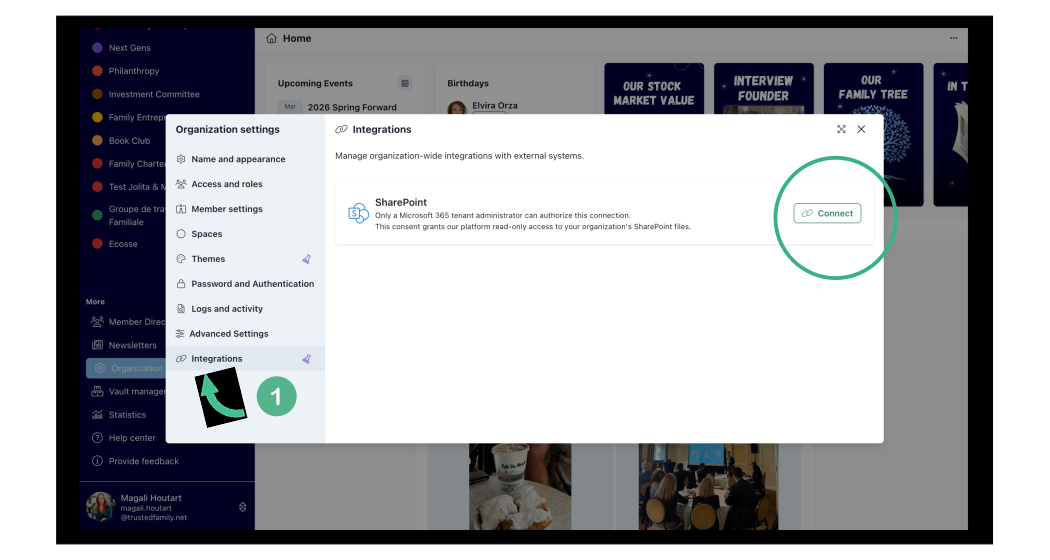
1. Go to Organization Settings, select Integrations and click on Connect next to SharePoint.
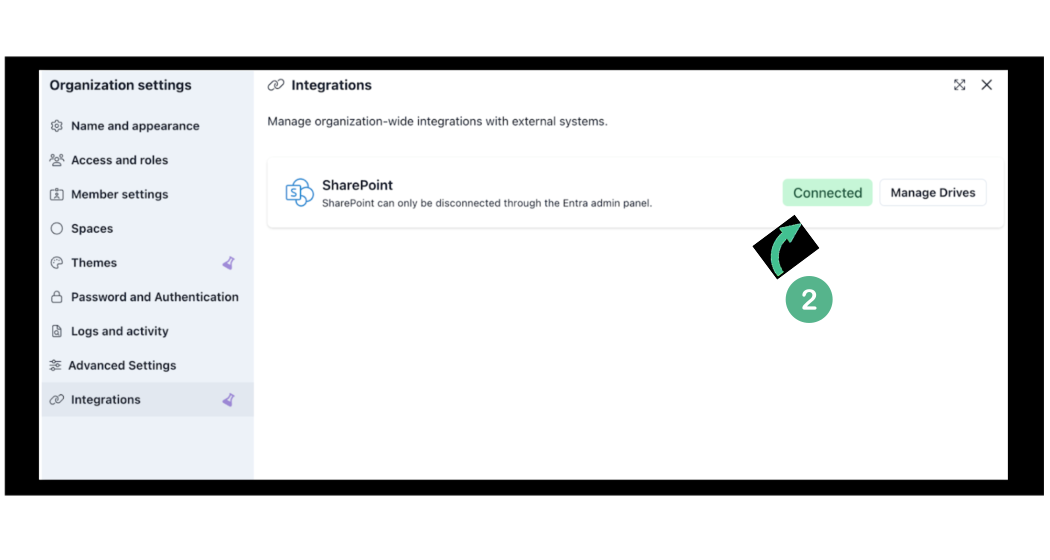
Note:
SharePoint Admin can disconnect SharePoint from Microsoft Entra panel at any point. If there are any synced files and folders, their sync will stop and they will not get updated if any changes occur on SharePoint.
3. The Sharepoint Admin will now be able to click on Manage Drives from Organization Settings.
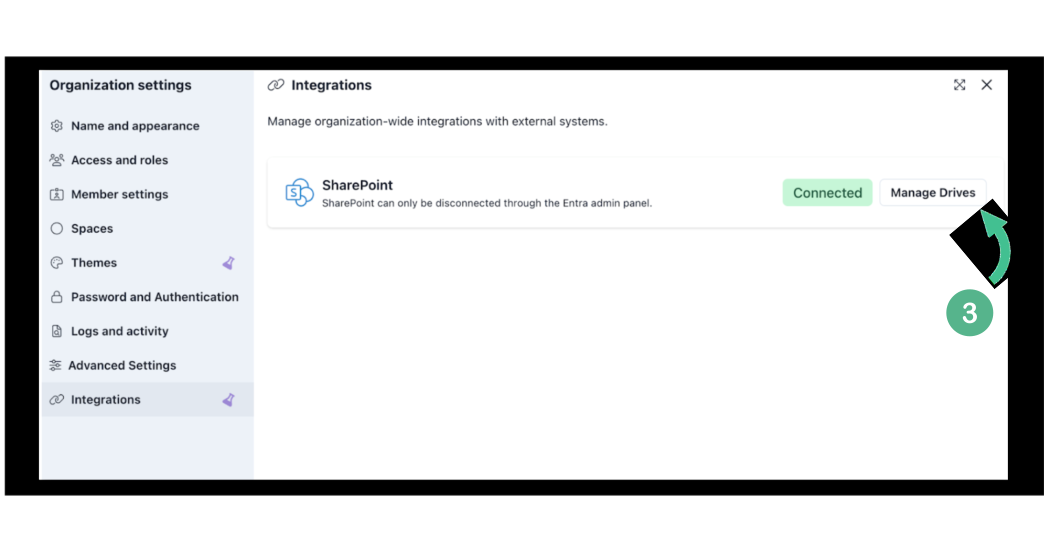
4. The Sharepoint Admin needs to select the SharePoint drives for syncing. You have to explicitly add them one by one and confirm each step. Use the arrows to expand, review and select by clicking on Add.
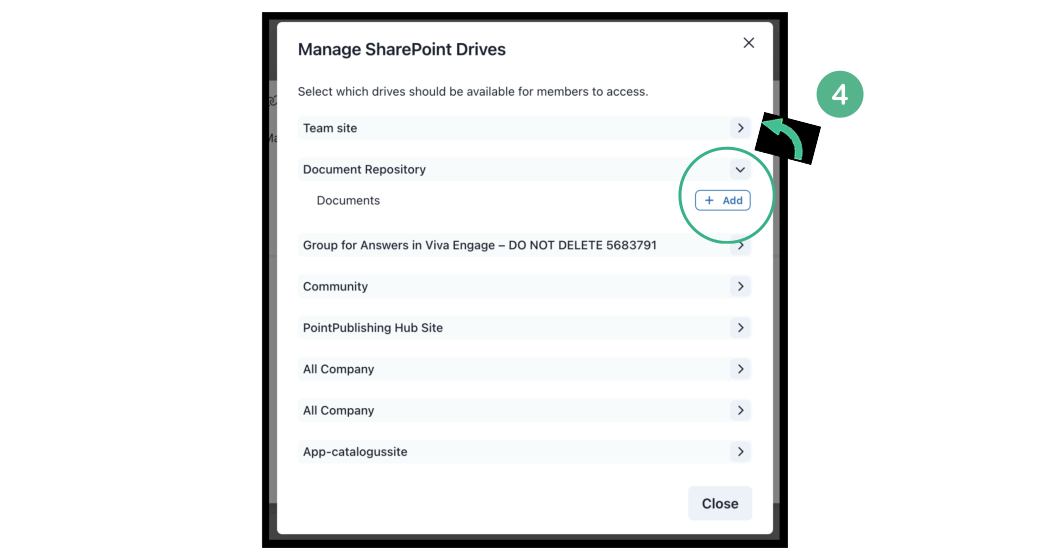
Note: Here's also where you can remove the drives that are connected if needed by clicking the bin icon or add new ones you wish to enable.
You're all set! Now the platform users will be able to Integrate Sharepoint as needed, thank you.